Leganto

Leganto is a comprehensive reading list management solution that delivers significant advantages for students, faculty, and the library as a whole.

For Students: Seamless Access and an Improved Learning Experience

Leganto is designed to place course materials at students’ fingertips, removing barriers to access and helping them engage with their coursework more efficiently.

  • Centralized, Single Point of Access: Students can find all their required and recommended readings in one convenient location, directly within Canvas. This eliminates the confusion of scattered PDFs, complex links, and multiple platforms, saving time and reducing frustration.
  • Reliable and Consistent Access: The system provides stable, authenticated links to library resources, minimizing “dead links” and ensuring students can access materials both on and off campus. Furthermore, the consistent format across all modules reduces confusion and helps students navigate their course content more effectively.
  • Always Up-to-Date Materials: Because instructors can easily update lists in real time, students are guaranteed to access the most current versions of readings. This eliminates the risk of relying on outdated versions or broken links that often occur with manually maintained course websites.
  • Clear Organization and Prioritization: Instructors can structure lists by week, topic, or priority level (e.g., required vs. recommended), and add due dates or personal notes. This clarity helps students plan their study schedule effectively and focus on the most critical materials first.

For Faculty: Streamlined Workflows and Powerful Tools

Leganto simplifies the process of creating and managing reading lists, saving faculty time and providing valuable tools to enhance teaching.

  • Ease of Use and Time Savings: Faculty can easily search the library catalog and drag and drop results directly into their reading lists. The AI Syllabus Assistant can automatically generate a reading list from a course syllabus, significantly reducing manual workload.
  • Effortless Reuse and Adaptation: Faculty can copy, adapt, and reuse reading lists for different courses or semesters. Lists can be duplicated and modified as the curriculum evolves, with the flexibility to keep, remove, or add new materials. This eliminates the need to start from scratch each time, saving significant effort and ensuring consistency across related course offerings.
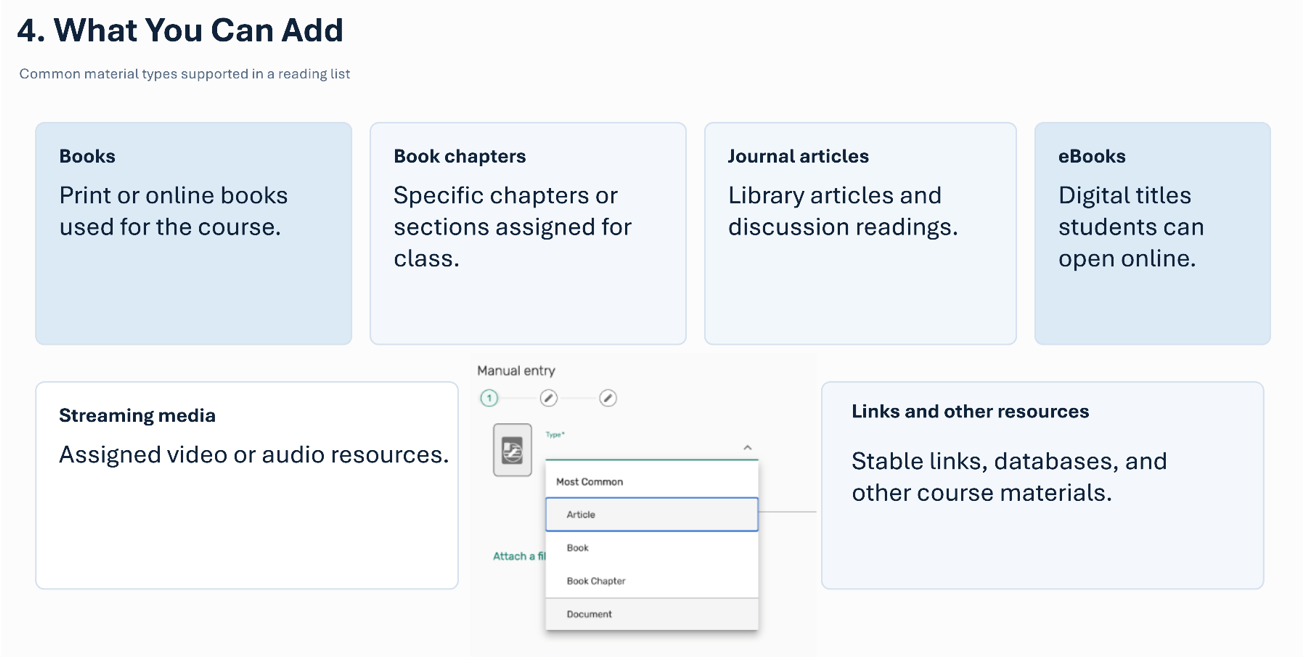
  • Flexibility and Control: Instructors can compile lists with a wide variety of resources, including books, articles, websites, videos, and more. They can structure lists by week or priority, add notes and “read by” dates for students, and reuse lists from semester to semester with minimal effort.
  • Data-Driven Insights: The analytics feature allows instructors to see which resources are being used the most, providing concrete data to measure student engagement and inform decisions on what materials to promote, replace, or supplement in the future.

The PowerPoint slides for the tutorial below are available for download here: click to download

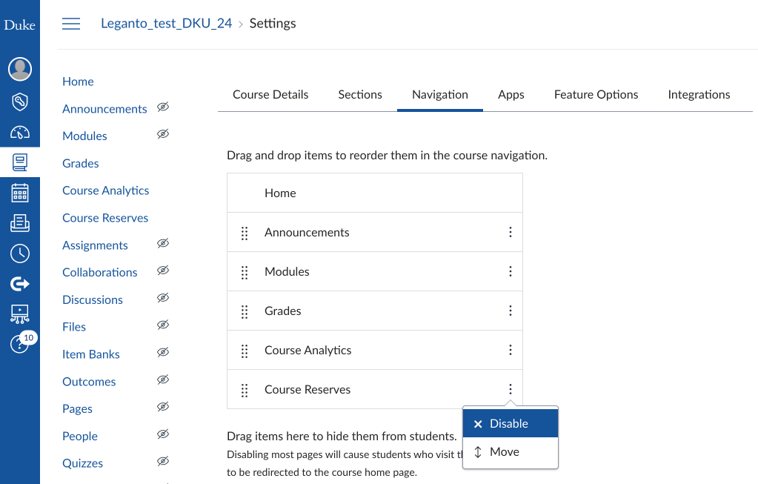
Enable Course Reserves in Canvas
Enabling Steps:
  1. Open the Canvas course and click Settings
  2. Select the Navigation tab
  3. Locate Course Reserves in the navigation list
  4. Enable it and click Save
  5. Return to the course homepage
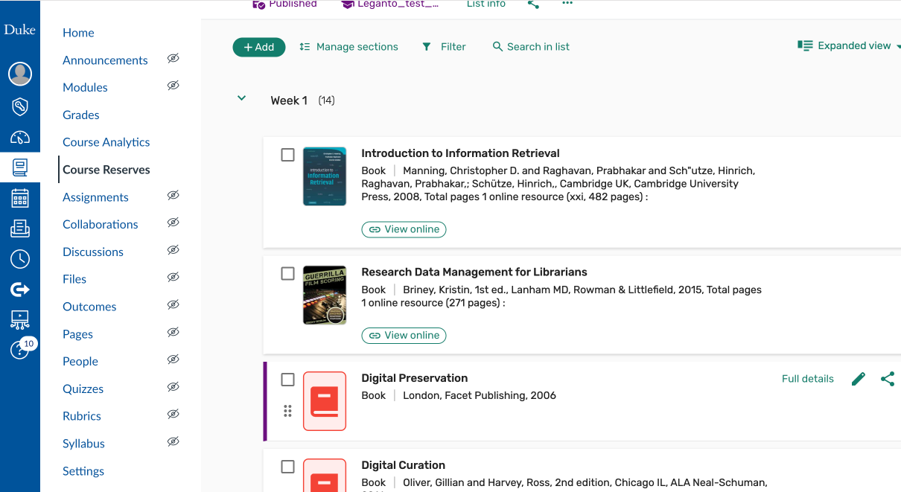
  6. Confirm Course Reserves appears in the left menu
  7. Open the link once to verify access
After enablement:
  • Once saved, the Course Reserves link should open the Leganto page for the course from the Canvas menu. This is the most common fix when instructors or students cannot find the tool in Canvas.
  1. Open Course Reserves from the course menu.
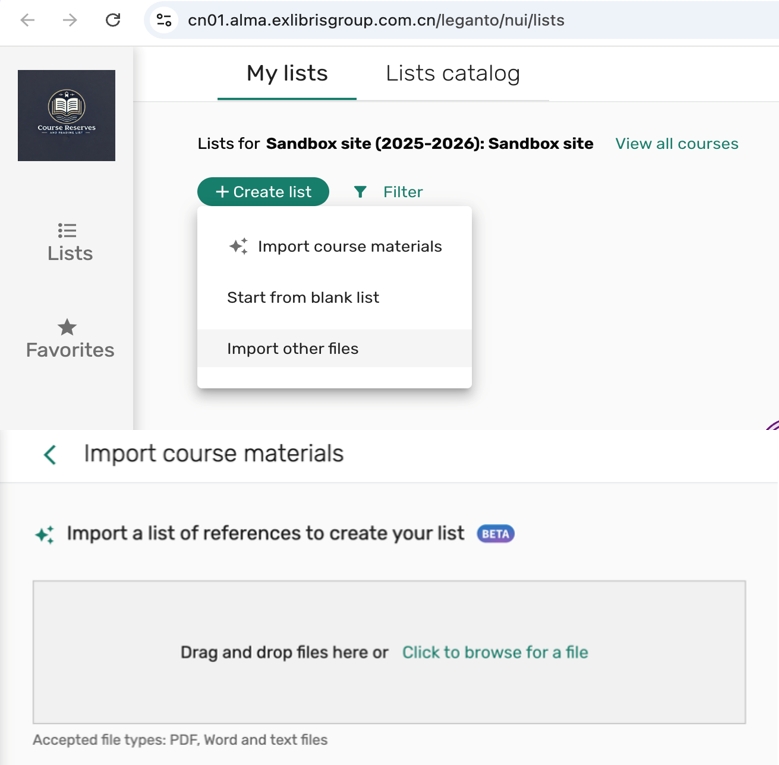
  2. Create a new list if the course has no existing list.
  3. Import course materials or Start from blank list.
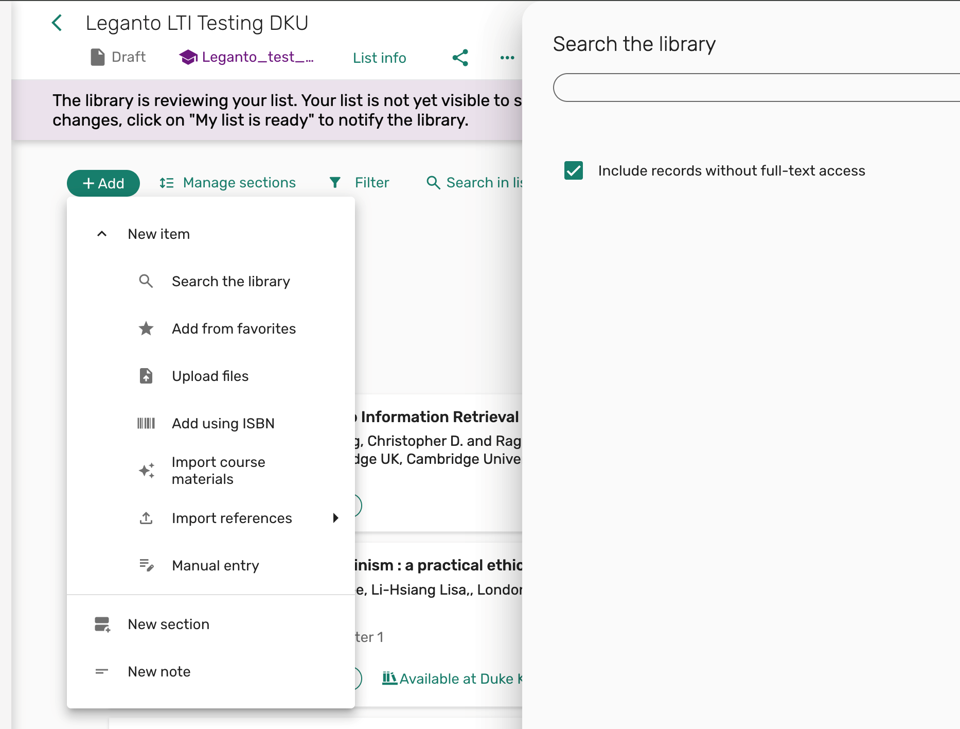
  1. Click +Add and choose Search the library.
  2. Select the search source if needed.
  3. Search by title, author, keyword, or identifier.
  4. Add the item and save it to the list.
  5. Move items into sections and adjust the order.

Send and publish at the right time:

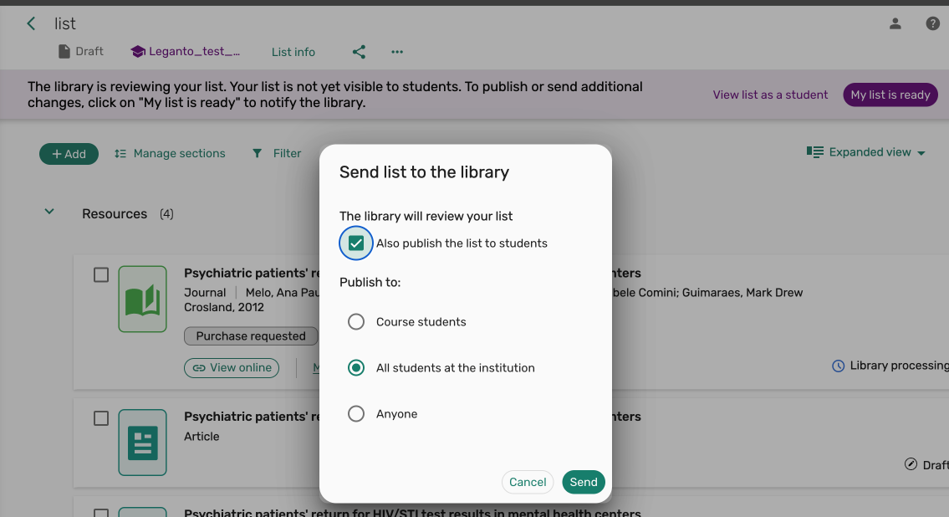
  1. Use My list is ready when the list content is prepared.
  2. Publish the list only when students should be able to see it.
  3. Use ‘View list as a student’ to see how It looks like to students.


***After building the list, review the status actions carefully so the list is processed and shown to students at the right time.

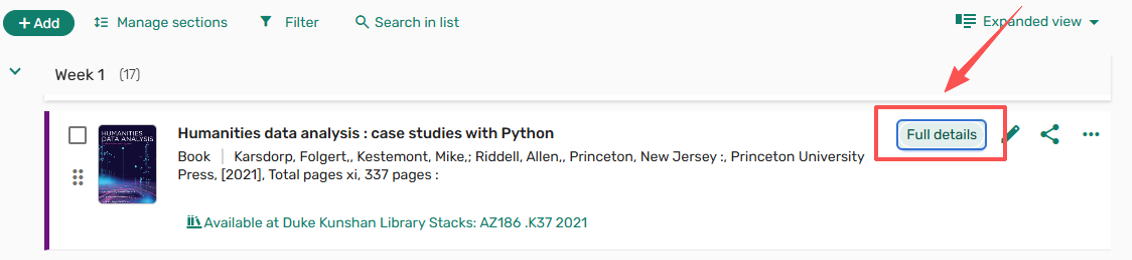
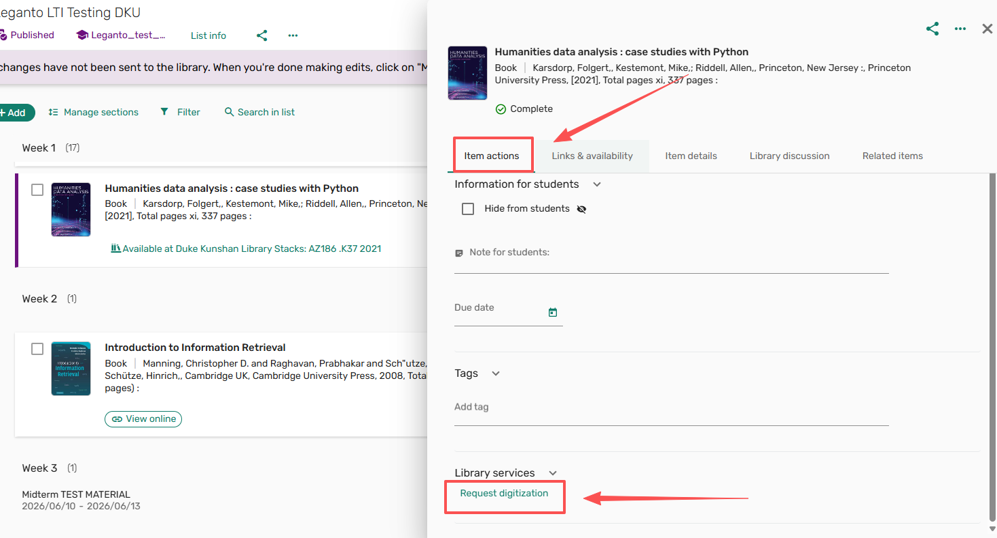
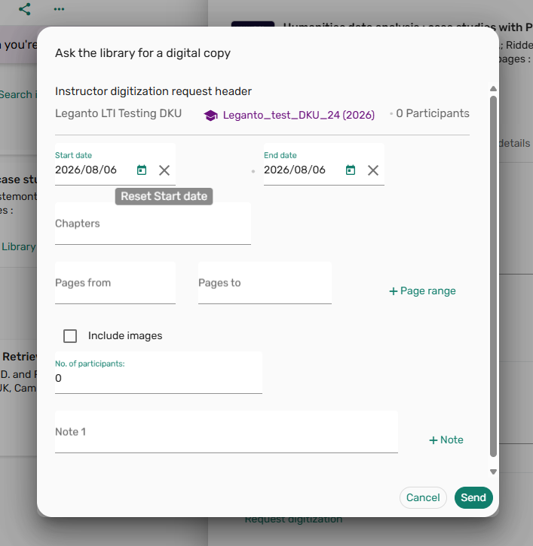
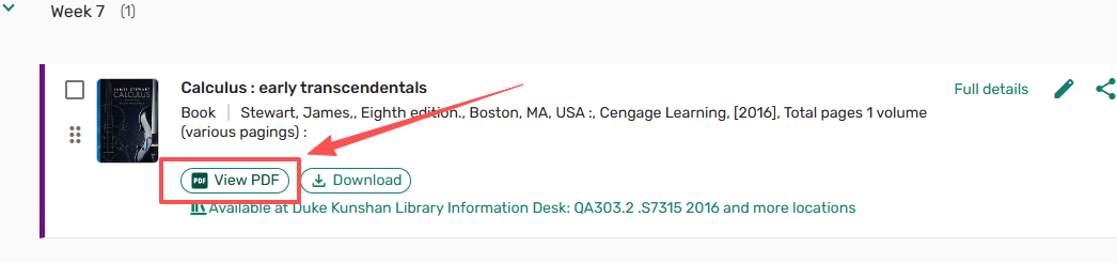
To place a digitalization request, please follow the steps:

  • Click “Full details” beside the title
  • Click “Item actions” then “Request digitization”. ***Please note if the resource is already available electronically, a digitization request cannot be created.
  • Fill out the form to provide the chapters or page numbers you need. Please note that only one request can be submitted per citation, be sure to submit all your requests at once. But you can add the same book again to submit further digitization request.
  • You will see “View PDF” button under the title once the file is ready.  
Troubleshooting and Support

Before students report a problem:

  1. Check whether Course Reserves is enabled in the Canvas course.
  2. Check whether the reading list has been published.
  3. Check whether the item is available in the expected format.
  4. Build and publish the list early if students need access before class.
  5. Escalate to the library when access conditions need review.


***Training shortcut: if students can see the course but not the reading list, first think enablement, publication status, and access format.

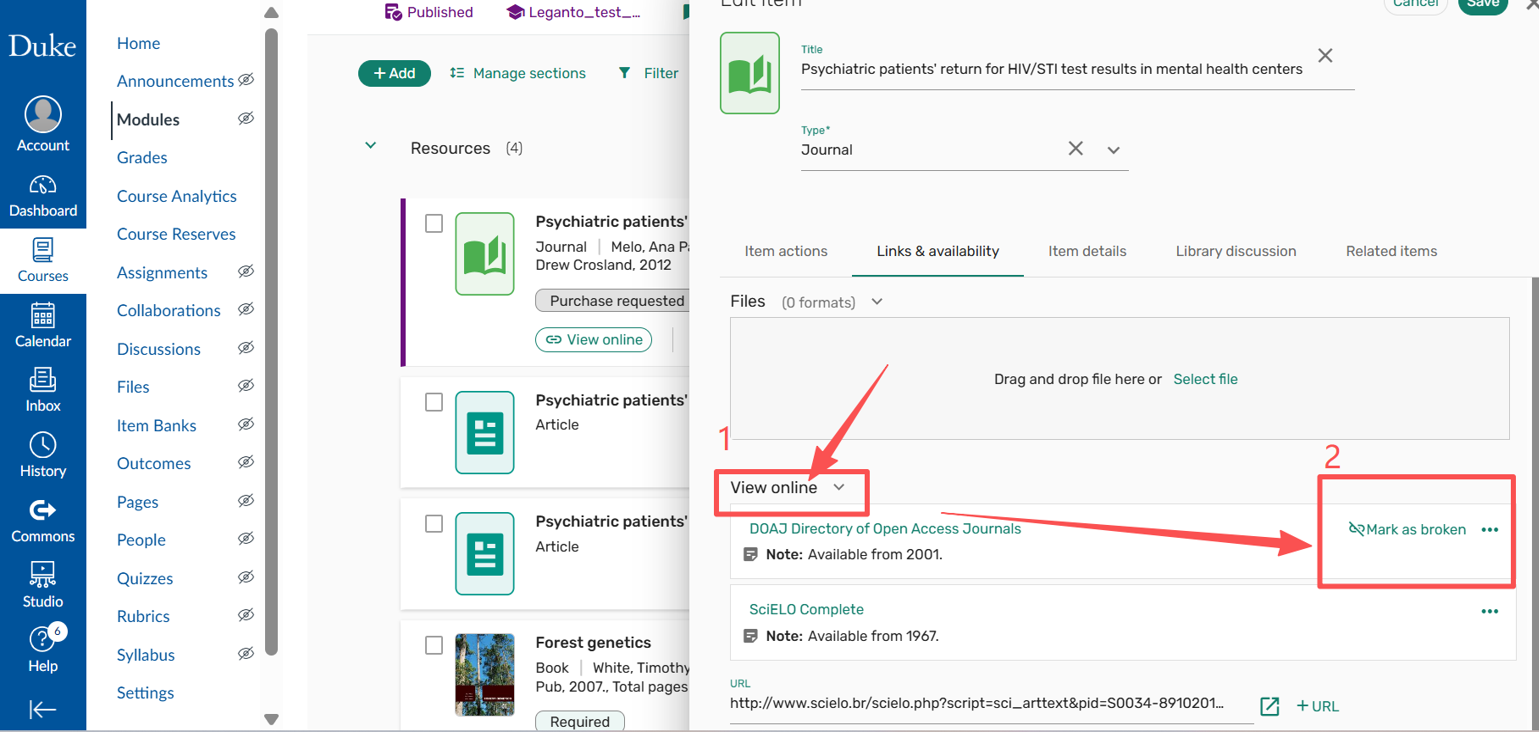
If you notice any issues with the library’s e-book link, please complete this step before contacting the library.

Please follow the steps below to mark the link as broken:

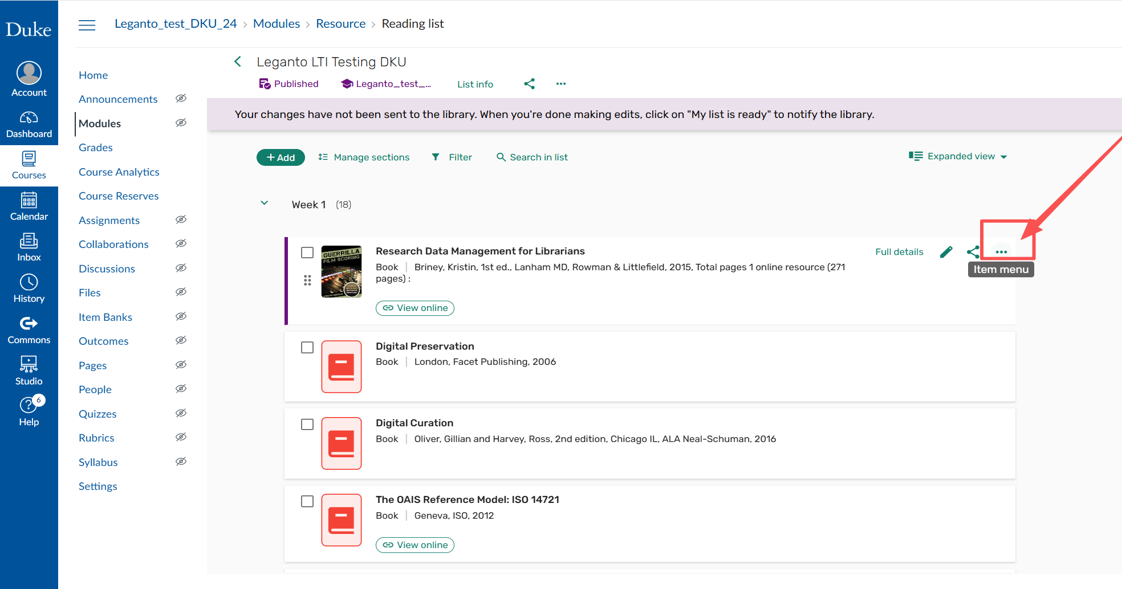
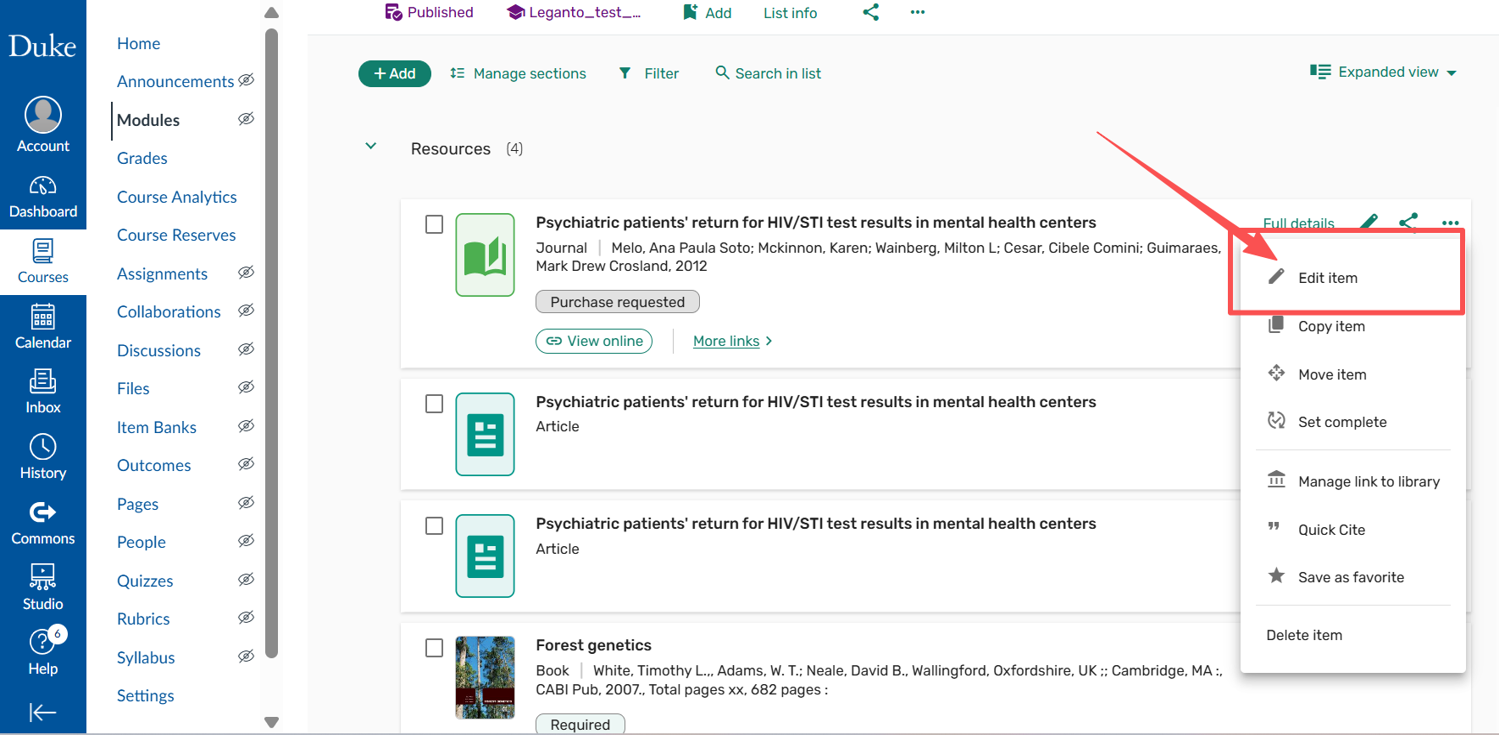
  • Click the Item menu

  • Choose Edit item
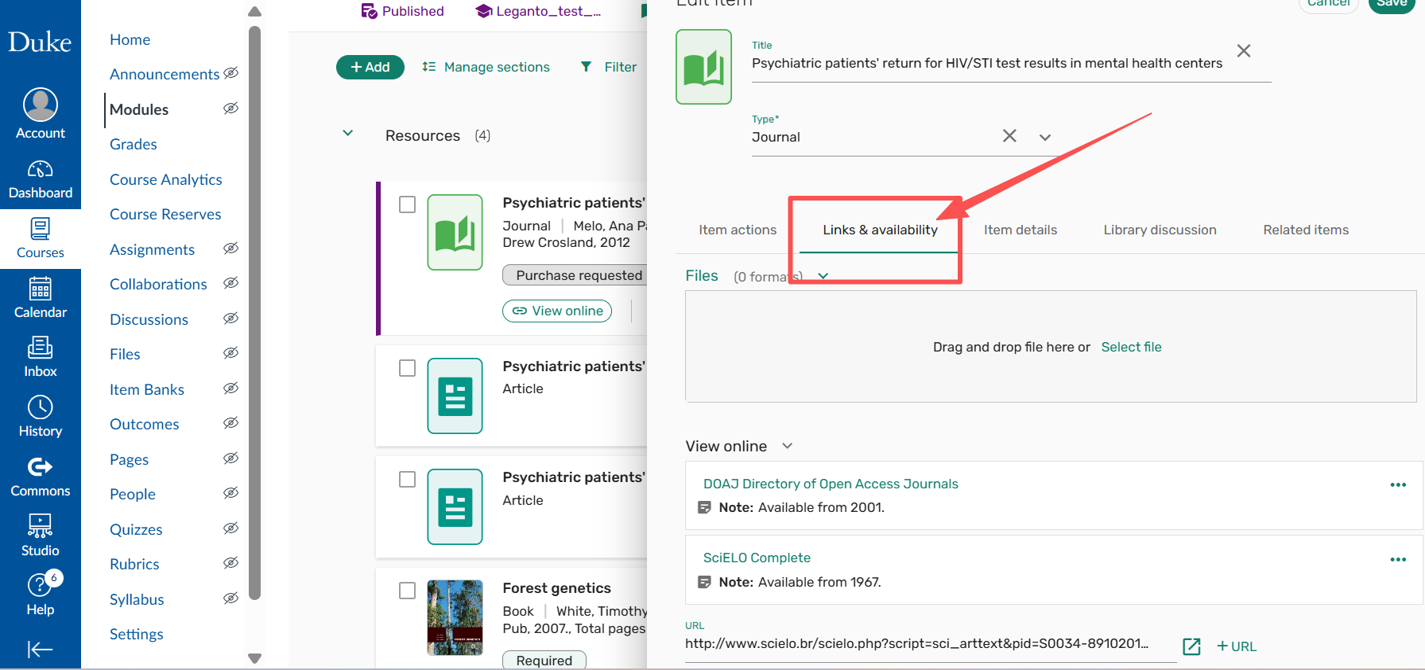
  • Click Links & available
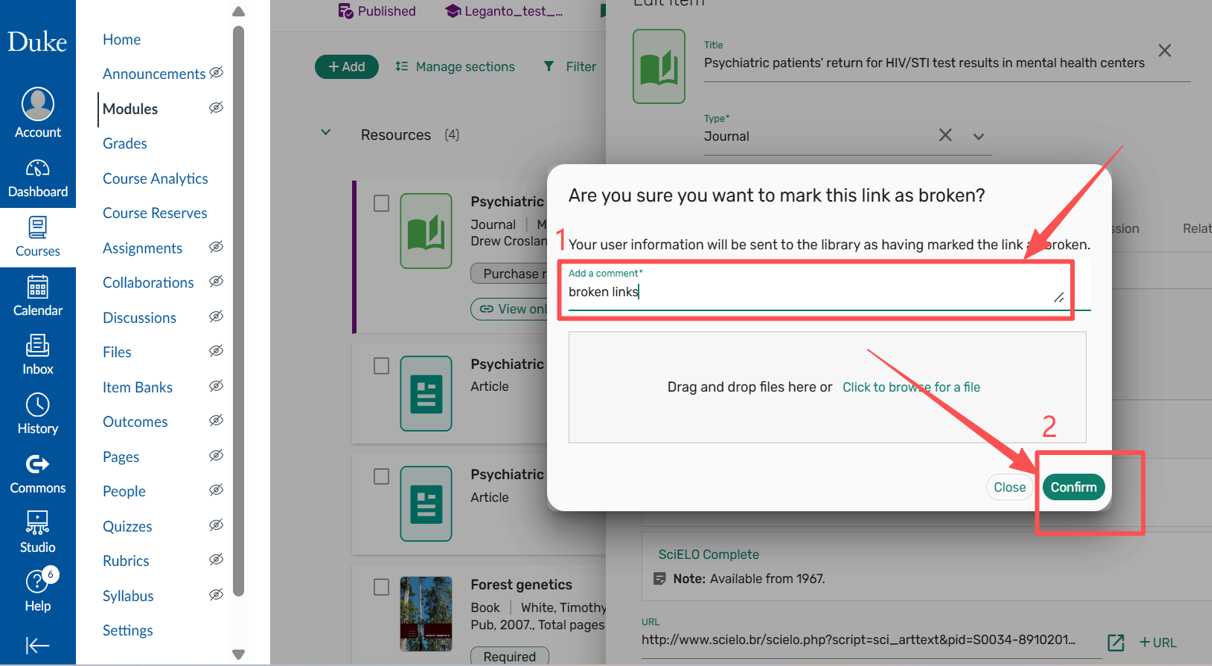
  • Move your mouse on the View Online, and click Mark as broken
  • Add comments and submit

Please note: the library will receive an alert once you complete the steps above. Once the problem has been fixed you will receive email from the library.

Need help with Course Reserves / Leganto? Contact the library via dkulibrary@dukekunshan.edu.cn.