This guide provides instructions for requesting, downloading, installing, and activating an NVivo 14 license using your NetID. NVivo is a qualitative data analysis software compatible with Windows and Mac.
Please note that Collaboration Cloud, Transcription, and the AI Assistant (available only in NVivo 15) are not included in our institutional license. If you require these features, you will need to purchase them independently or explore alternative solutions.
Requesting License
1. Check NVivo’s system requirements before downloading (Windows or Mac). 2. If you are current DKU faculty, staff, or a student, order the NVivo license key by submitting a request from the Duke Software License site.
3. If you don’t have a myLumivero account, create one here. You will need a myLumivero account before downloading the installation package.
Downloading, Installation, and Authorization (Windows)
Downloading
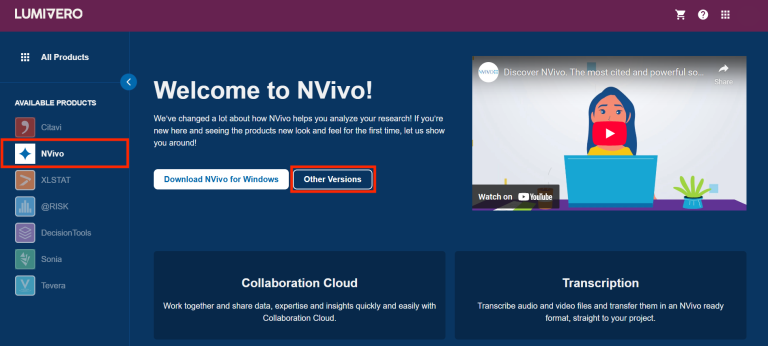
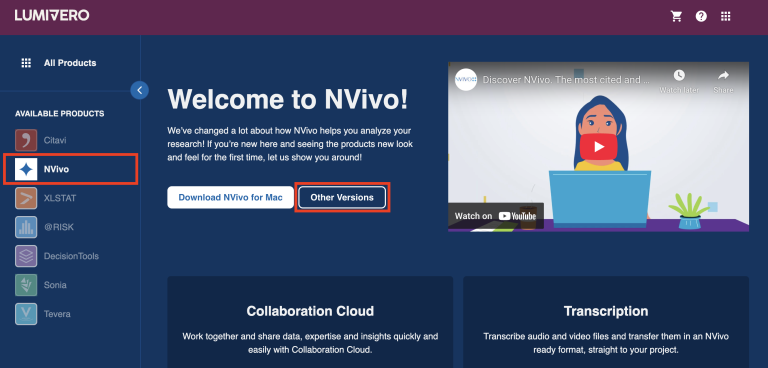
1. Log in myLumivero account. Go to NVivo, select Other Versions.
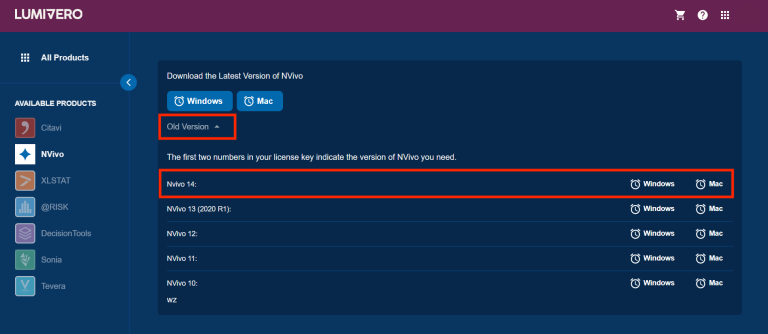
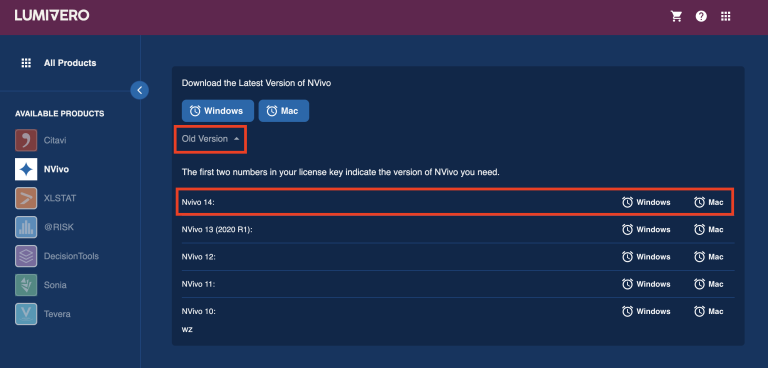
2. Click on Old Version, and select Mac next to NVivo 14.
3. Now you should have the NVivo 14 Windows installation package downloaded onto your computer
Installing
1. After the download is complete, locate the NVivo installer in your Downloads and open it.
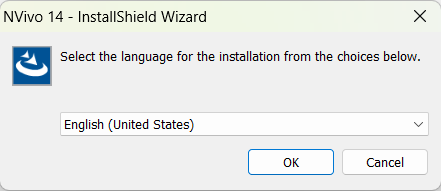
2. Select your preferred language for the installation process and click OK.
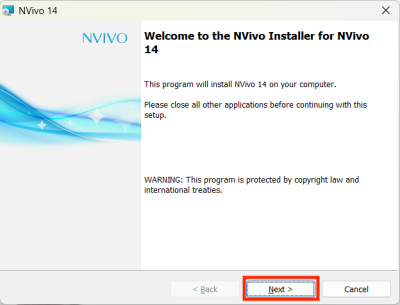
3. Go through the instructions and click Next.
4. Read through the License Agreement, select “I accept the terms in license agreement” and click Next.
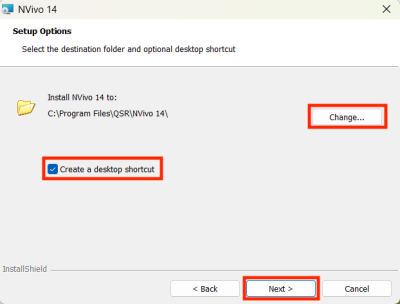
5. Change the destination folder and uncheck “Create a desktop shortcut” if needed, then click Next.
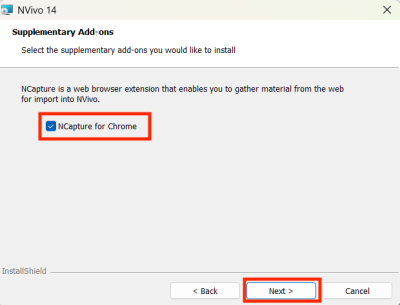
6. Choose to install NCapture, an add-on for NVivo, if needed, then click Next. We will cover NCapture in more detail during the Introduction to NVivo 14.
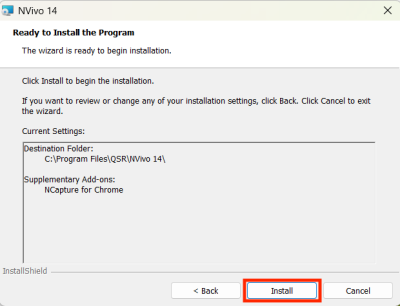
7. Review your installation settings and click Install.
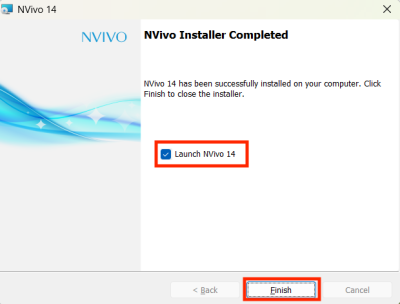
8. Once the Installation is complete, select Launch NVivo 14 and click Finish.
Licensing
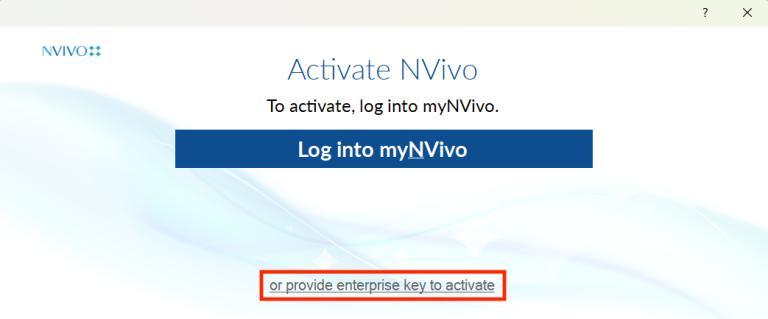
1. Open NVivo 14, and click on “or provide enterprise key to activate”.
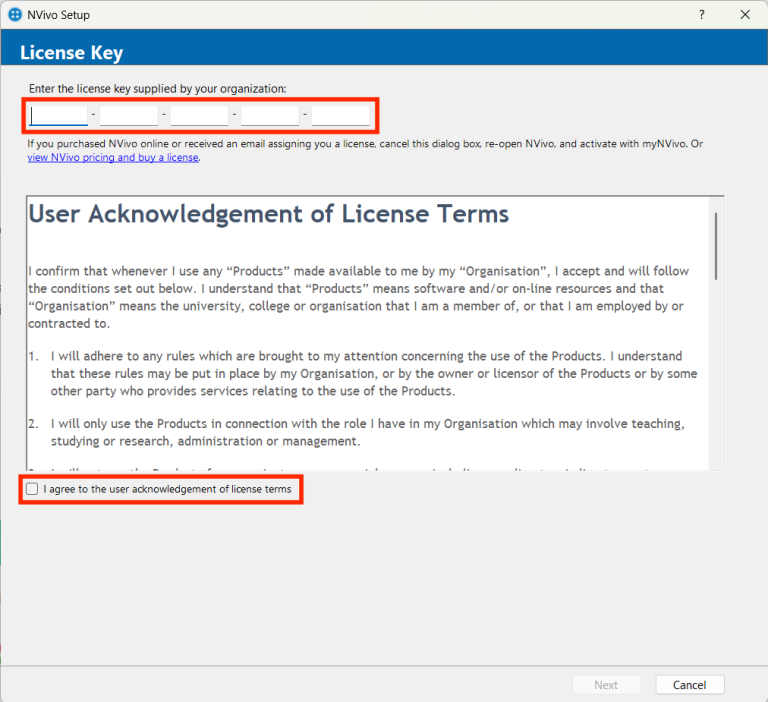
2. Copy and paste the license key from your order into the license key field. Read and Agree to user acknowledgement of license terms, then click Next.
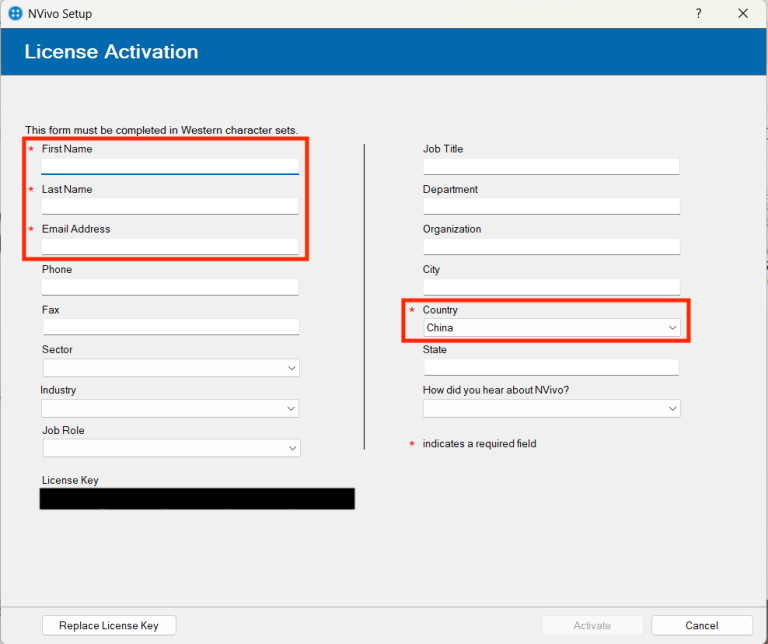
3. Fill in the required fields, and click Activate to finish activation.
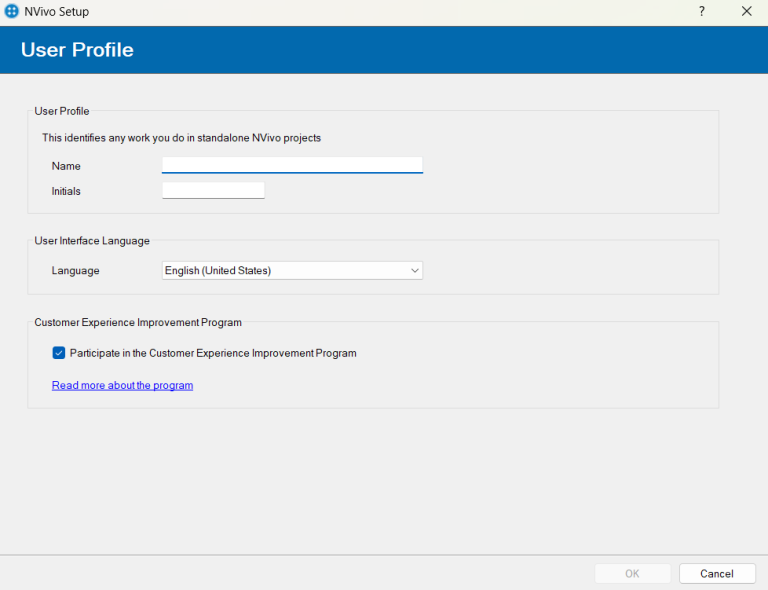
4. Complete your User Profile by entering your name and initials, then click OK. Using initials is especially important in team projects, as it can be used to identify your contribution.
Renewing License
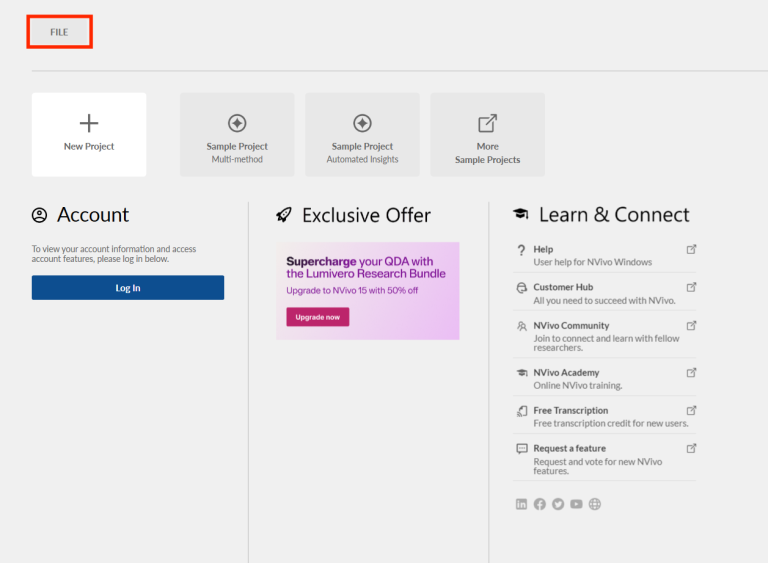
1. To replace or update your NVivo license key, navigate to the start screen and click FILE.
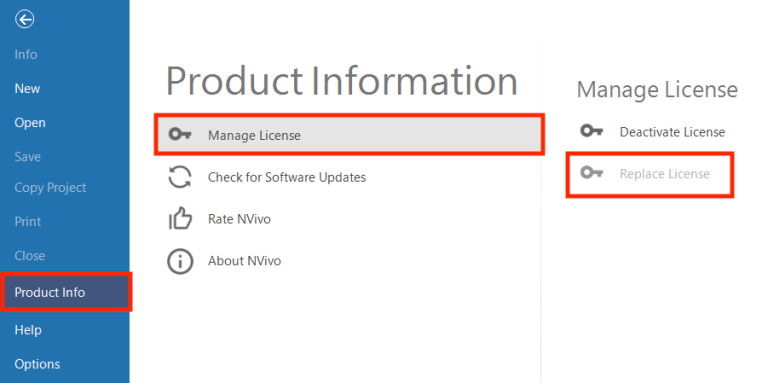
2. Under Product Info, go to Manage License, and click Replace Licence.
3. Copy and paste the new license key in, and click OK.
Downloading, Installation, and Authorization (Mac)
Downloading
1. Log in myLumivero account. Go to NVivo, select Other Versions.
2. Click on Old Version, and select Mac next to NVivo 14.
3. Now you should have the NVivo 14 Mac installation package downloaded onto your computer
Installing
1. After the download is complete, locate the NVivo installer in your Downloads and open it.
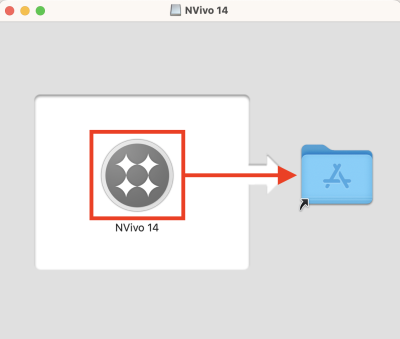
2. Drag the NVivo icon on the left to the folder on the right. This will make a copy in the Mac Launchpad.
3. Once the copy is complete, go to the Launchpad and open NVivo 14.
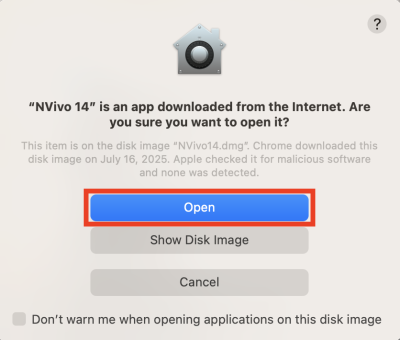
4. You will be asked to confirm that you would like to open the application, select Open.
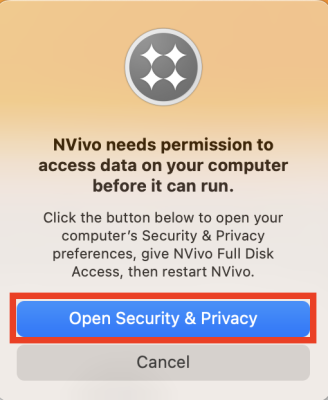
5. You will be asked to give NVivo 14 permission to access data before it can run. Click to Open Security & Privacy.
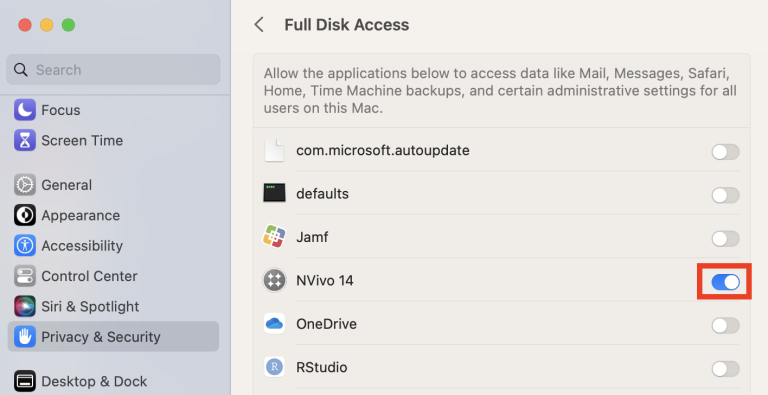
6. Under Full Disk Access, turn the toggle next to NVivo 14 ON.
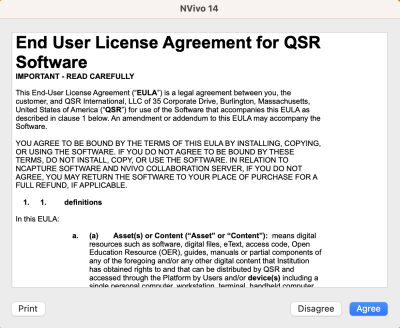
7. Read through the License Agreement, then click Agree.
Licensing
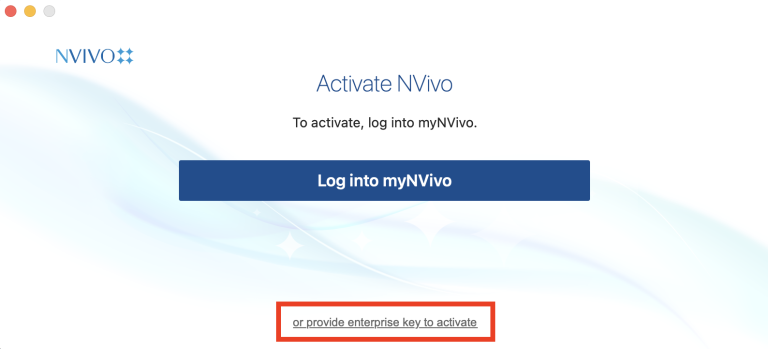
1. Open NVivo 14, and click on “or provide enterprise key to activate”.
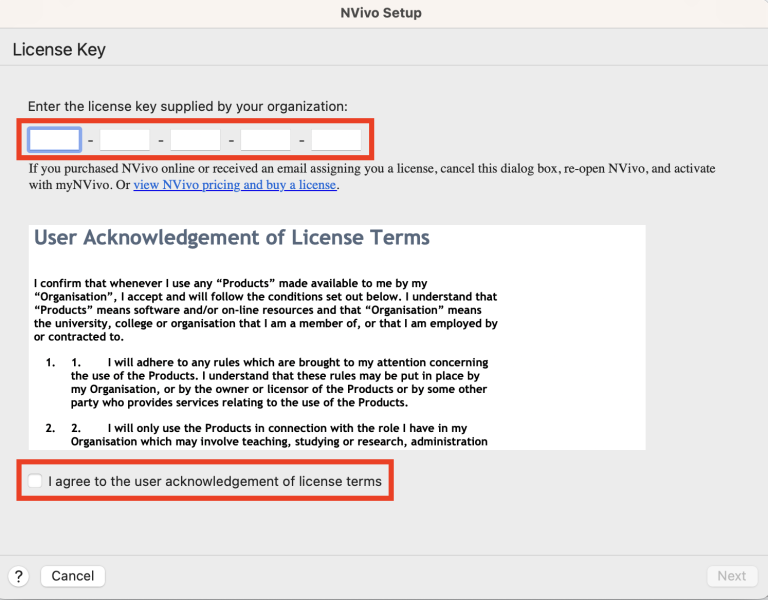
2. Copy and paste the license key from your order into the license key field. Read and Agree to user acknowledgement of license terms, then click Next.
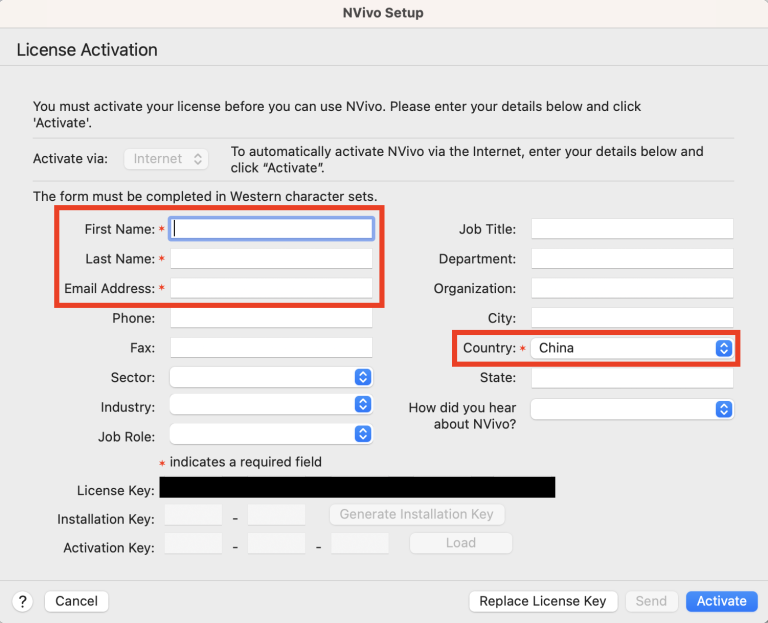
3. Fill in the required fields, and click Activate to finish activation.
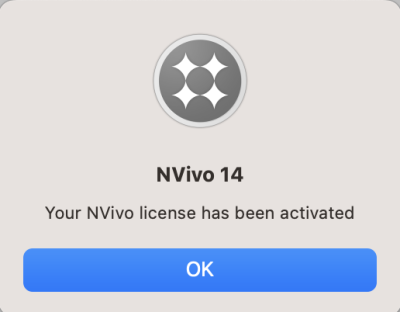
4. Once your license is successfully activated, click OK.
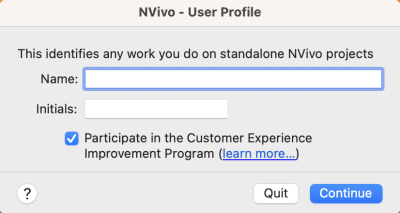
5. Complete your User Profile by entering your name and initials, then click Continue. Using initials is especially important in team projects, as it can be used to identify your contribution.
Renewing License
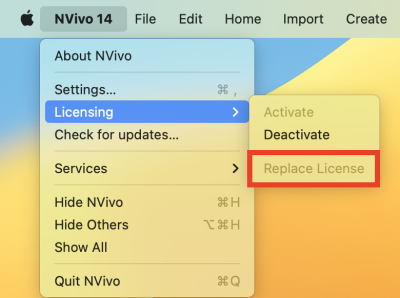
1. To replace or update your NVivo license key, click on NVivo 14 in the Mac status bar and find Licensing.
2. Use the Replace Licence option.
3. Copy and paste the new license key in, and click OK.
Troubleshooting
If you encounter any technical issues installing or using NVivo 14, NVivo User Help (Windows or Mac) is a good place to start.
If the problem persists or your issue is not addressed there, please contact the Data and Visualization Librarian, Siti Lei (siti.lei@dukekunshan.edu.cn) for further support.