
The Accessibility Corner on the 4th Floor of DKU Library has introduced a range of assistive reading devices and software designed to support users with visual impairments, reading difficulties, or other accessibility needs. These devices and software aim to improve access to text-based resources and digital content.
Locations and borrowing policies
Supporting software is already installed on the 2 workstations at the Accessibility Corner. Supporting devices needs to be checked out separately.
- Visit the 1st Floor Information Desk from 9:00am to 5:30pm to check out the devices.
- Loan period is 3 hours with 1 renewal permitted.
- Devices cannot be kept overnight.
- All devices are available for in-library use at the Accessibility Corner only.
Mishu AI (咪鼠AI) | MI Mouse AI (with USB Receiver)
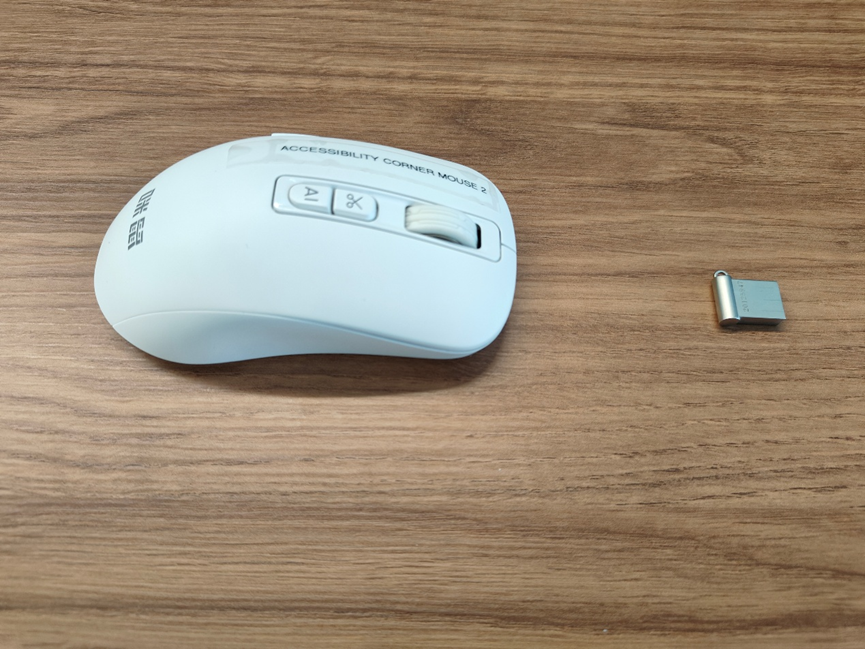
Mishu AI (咪鼠AI) is a software to support mouse-assisted text recognition and voice input. When used together with MI Mouse AI, it can assist users with text recognition and reading via mouse interaction. The software supports both Chinese and English text and enables cursor-based text reading and voice-assisted input.
How to use:
- Insert the USB receiver into the computer.
- Launch the software (咪鼠AI).
- Move the cursor over on-screen text to assist with reading.
- Voice-based text generation or input is available via the software interface.
VideoCap-Shortcut | USB Video Magnifier (Mouse Magnifier)
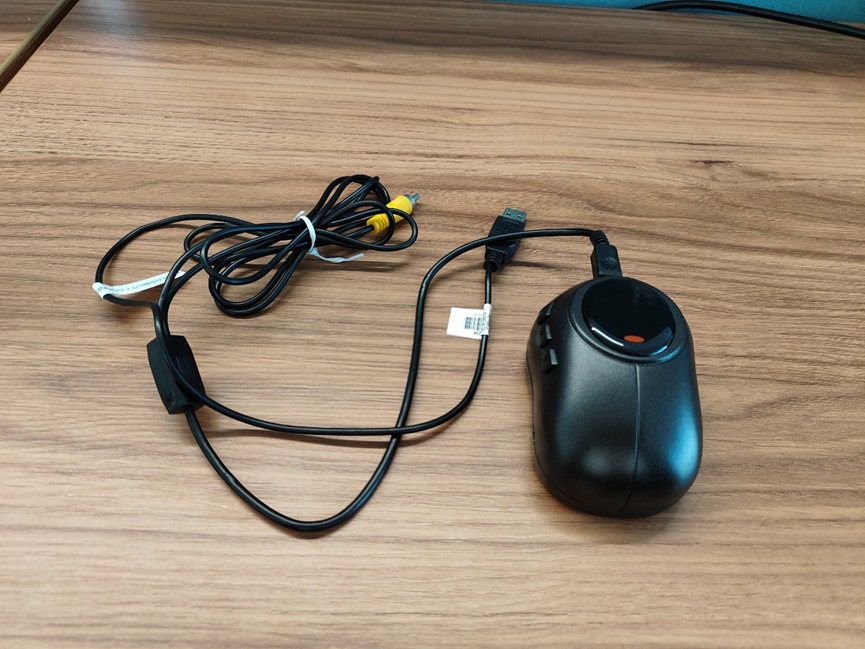
VideoCap-Shortcut is used for screen magnification and visual adjustment. When used together with the USB Video Magnifier, it magnifies on-screen text and images and allows adjustment of background colors.
How to use:
- Plug the device into a USB port on the computer.
- Launch VideoCap-Shortcut.
- Adjust magnification level and display settings as needed.
Protection & Ease (保益悦听)
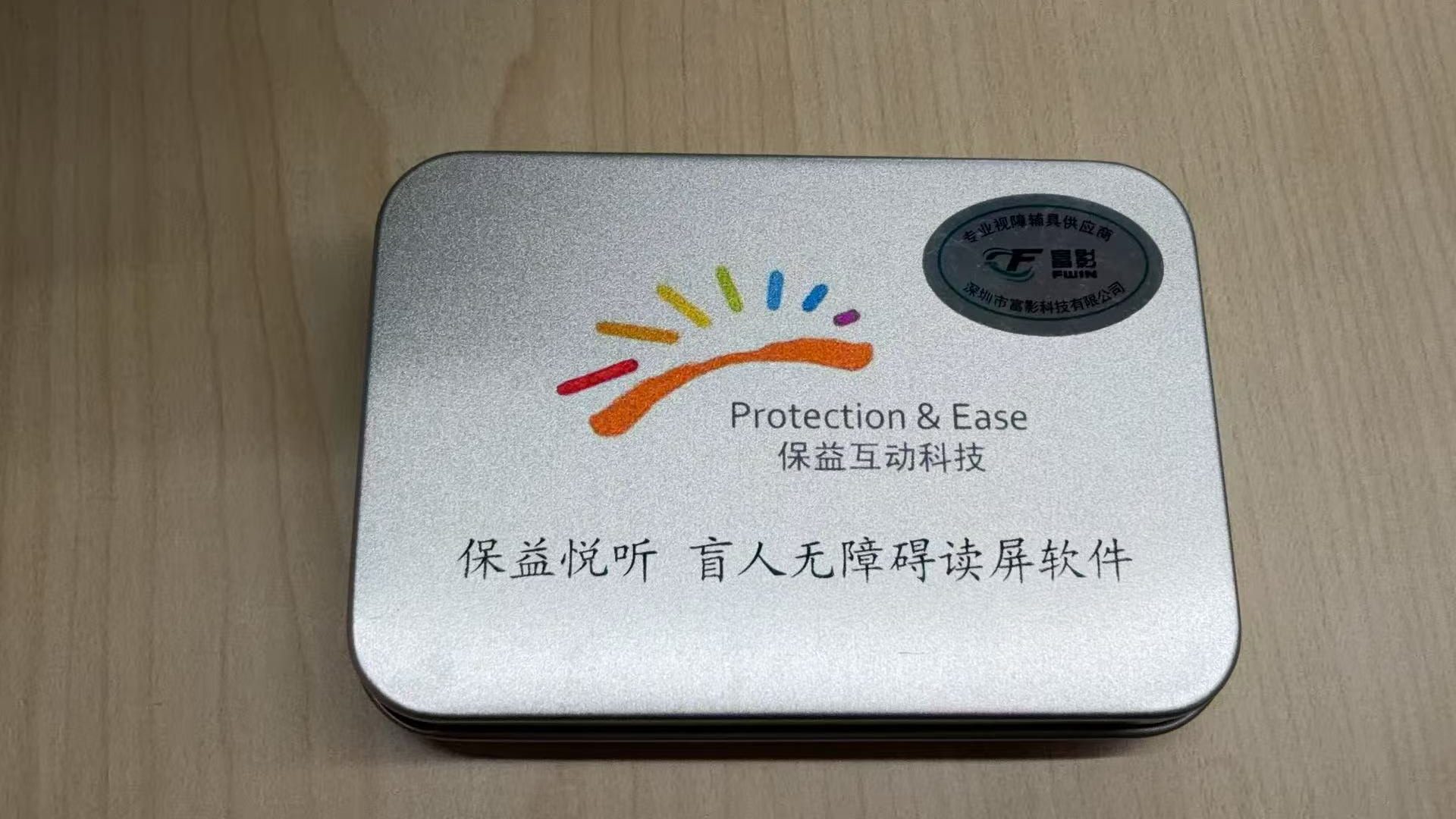
Protection & Ease (保益悦听) is an assistive software that provides with text-to-speech and audio-based reading support. By converting text into audio, the software provides clear and private audio output for users who benefit from auditory support. The software can be used together with user’s own headphone or a library-owned headphone.
How to use:
- Plug the key USB for Protection & Ease into a USB port on the computer.
- Connect a headphone to the computer.
- Launch the software (保益悦听).
- Use the software’s text-to-speech functions as needed.
Video Demonstration